
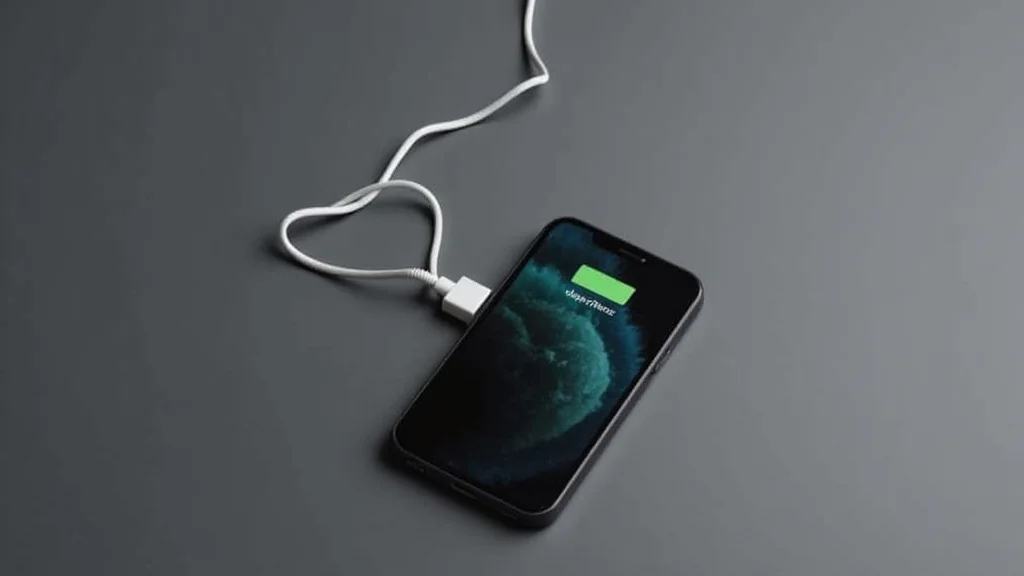
It can be a little frustrating when your iPhone just won’t charge. You plug it in, and nothing happens. For many people, this is a common problem, and it can feel tricky to figure out why.
Don’t worry though, it’s usually something simple you can fix yourself. We’ll walk through easy steps to get your phone charging again. Let’s see what’s going on and how to solve it.
Key Takeaways
- Learn common reasons why an iPhone might not be charging.
- Discover simple checks for your charging cable and adapter.
- Understand how to clean your iPhone’s charging port safely.
- Find out how to restart your iPhone to fix charging issues.
- Explore software solutions for iPhone charging problems.
- Know when it’s time to seek professional help.
Why Is My iPhone Not Charging
Seeing that your iPhone is not charging can stop you in your tracks. You rely on your phone for so much, and a dead battery means a dead connection to the world. This problem happens for many reasons, and some are super simple to fix.
Others might need a little more attention, but usually, it’s not a big mystery. We’re going to break down the most common reasons and show you how to tackle them one by one.
Checking Your Charging Gear
The first place to look when your iPhone is not charging is the equipment you use to power it up. This includes your charging cable and the power adapter. These are the most common culprits for charging failures.
The Charging Cable
Your iPhone charging cable, often called a Lightning cable, can wear out. Wires inside can break, especially if you bend the cable a lot or pull on it sharply. Look closely at the cable.
Does it have any frayed parts or cuts? Are the metal connectors at the ends clean and free of damage? A damaged cable won’t let power flow correctly.
Try using a different charging cable if you have one. It’s best to use Apple-certified cables (MFi certified) because they are made to work well with iPhones. Sometimes, even a brand-new cable might be faulty, so testing another one is key.
The Power Adapter
The power adapter is the brick that plugs into the wall. Like cables, adapters can also stop working. Check the adapter for any visible damage, like cracks or bent prongs.
Make sure it’s firmly plugged into the wall outlet.
If you’re using a USB power adapter, try plugging the cable directly into a computer’s USB port. While this usually charges slower, it can help you see if the adapter itself is the problem. If your iPhone charges when connected to a computer but not with the wall adapter, the adapter is likely the issue.
Wall Outlet Check
It sounds very basic, but make sure the wall outlet you’re using actually works. Plug another device, like a lamp or a toaster, into the same outlet. If that device doesn’t work either, the problem is with the outlet, not your iPhone or its charger.
Cleaning Your iPhone’s Charging Port
The charging port on your iPhone can collect dust, lint, and other debris. This gunk can block the charging cable from making a proper connection. Over time, pocket lint is a common offender.
To clean it, you’ll need good lighting and a small, non-metallic tool. A toothpick is often recommended, but be very gentle. You can also use a can of compressed air.
- Using a Toothpick: Gently insert a wooden or plastic toothpick into the charging port. Carefully scrape along the sides and bottom to dislodge any debris. Avoid poking forcefully, as you could damage the pins inside.
- Using Compressed Air: Hold the can of compressed air upright and use the straw attachment. Aim the nozzle at the charging port and give it short bursts of air. This can blow out loose dust.
After cleaning, try plugging in your iPhone again. Sometimes, just removing a small amount of lint is all it takes.
Restarting Your iPhone
A simple restart can often fix many minor software glitches that might be preventing your iPhone from charging. This is a quick and easy step that resolves a surprising number of issues.
How to Force Restart Your iPhone
The method for force restarting varies slightly depending on your iPhone model:
- For iPhone 8 or later (including iPhone SE 2nd and 3rd gen): Press and quickly release the volume up button. Press and quickly release the volume down button. Then, press and hold the side button (on the right side) until you see the Apple logo.
- For iPhone 7 and iPhone 7 Plus: Press and hold both the side button and the volume down button until you see the Apple logo.
- For iPhone 6s or earlier (including iPhone SE 1st gen): Press and hold both the Home button and the top (or side) button until you see the Apple logo.
Once your iPhone restarts, try charging it again. This process refreshes the phone’s system and can clear temporary software bugs.
Checking for Software Updates
Sometimes, a bug in the iPhone’s operating system (iOS) can cause charging problems. Apple often releases software updates to fix these kinds of issues.
If your iPhone has enough battery or is plugged into a working charger (even if slowly), check for updates. Go to Settings > General > Software Update. If an update is available, download and install it.
Make sure your iPhone is connected to Wi-Fi for this process.
Is Your iPhone Overheating
iPhones have built-in safety features that can stop charging if the device gets too hot. If your iPhone feels very warm or hot to the touch, it might have stopped charging to prevent damage.
If your iPhone is overheating, remove it from its case and move it to a cooler location. Avoid direct sunlight or hot environments. Once it cools down, try charging it again.
Testing Different Charging Methods
If you have a wireless charger, try using that. If your iPhone charges wirelessly, it strongly suggests the issue is with your wired charging setup (cable or port). If wireless charging also doesn’t work, the problem is more likely with the phone itself.
What If It’s a Battery Issue
Batteries in all devices have a lifespan. Over time, they degrade and hold less charge. If your iPhone is several years old and has started charging very slowly or not at all, the battery might be at the end of its life.
You can check your battery’s health in Settings > Battery > Battery Health & Charging. If the “Maximum Capacity” is significantly low (e.g., below 80%), it might be time for a battery replacement.
Consider a DFU Mode Restore (Advanced)
A Device Firmware Update (DFU) mode restore is a more extreme software fix. It reinstalls the iPhone’s firmware from scratch. This is usually a last resort before considering hardware problems or professional help.
This process will erase all data on your iPhone, so make sure you have a backup first.
To enter DFU mode, you typically need to connect your iPhone to a computer with iTunes (or Finder on Mac) and follow specific button press sequences. Because this is an advanced step, it’s recommended to look up the exact DFU mode steps for your specific iPhone model.
Frequently Asked Questions
Question: Why does my iPhone stop charging sometimes
Answer: Your iPhone may stop charging if it overheats, if there’s debris in the charging port, or due to a software glitch. Sometimes a faulty cable or adapter can also cause it to stop charging intermittently.
Question: Can I use a third-party charger for my iPhone
Answer: Yes, but it’s best to use MFi-certified (Made for iPhone) third-party chargers. These have been tested and approved by Apple to work safely and effectively with your iPhone.
Question: How often should I clean my iPhone’s charging port
Answer: You should clean your iPhone’s charging port whenever you notice charging issues or if you suspect debris has built up. A quick clean every few months can also help prevent problems.
Question: My iPhone is old, is it normal for it not to charge well
Answer: Yes, as batteries age, their capacity decreases. If your iPhone is several years old, its battery may be degraded, leading to slower charging or inability to hold a charge.
Question: What should I do if none of these tips work
Answer: If you’ve tried all the troubleshooting steps and your iPhone is still not charging, it’s likely a hardware issue. You should contact Apple Support or visit an authorized service provider for further assistance.
Final Thoughts
It’s a relief when your iPhone starts charging again. You’ve learned how to check your cables and adapters, clean the port, and restart your phone. These simple steps often solve the iphone not charging problem.
If these don’t work, checking battery health or considering software updates are the next smart moves. You have the tools now to tackle this common issue.
Leave a Reply